



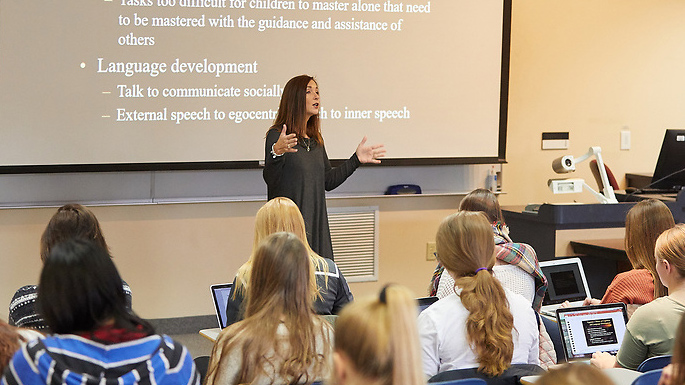
Undergraduate programs

Psychology
Undergrad major Undergrad minorAre you interested in human emotion, memory, motivation and personality? Learn to better understand the mind and behaviors with a psychology degree.

Child & Youth Care
Undergrad minorPrepare for a career that supports the growth and development of at-risk youth with a minor in Child and Youth Care (CYC).
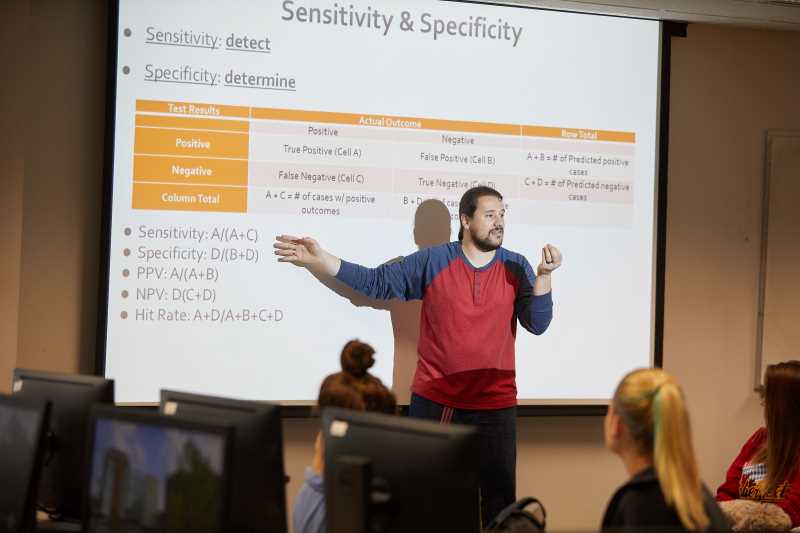
Neuroscience
Undergrad minorAre you interested in the brain? UW-La Crosse's Neuroscience Interdisciplinary minor is designed to help prepare students to explore this frontier.
Gerontology Certificate
Undergrad certificateGerontology is the study of aging. Learn how studying gerontology could open new opportunities if added to your degree.
Related programs from other departments


Graduate programs

School Psychology
Teacher license Graduate degreeMake a meaningful impact on the lives of children and adolescents by providing mental and behavioral health support in school settings.
Areas of study
Educational Specialist - Ed.S.
Master of Science Education - MSED
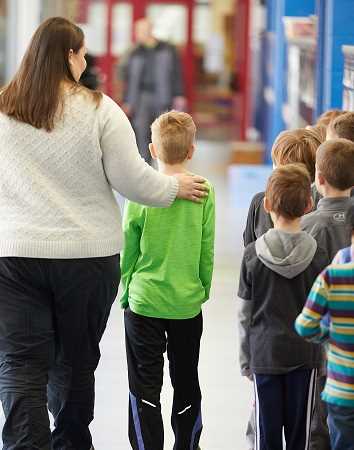
School Psychology Online
Teacher license Graduate degreeWisconsin licensed educators with at least one year of K–12 experience can take the next step in their careers through this online school psychology program.
Featured courses
View all coursesGet assistance
Upcoming events
Latest news

Upcoming Academic Calendar dates
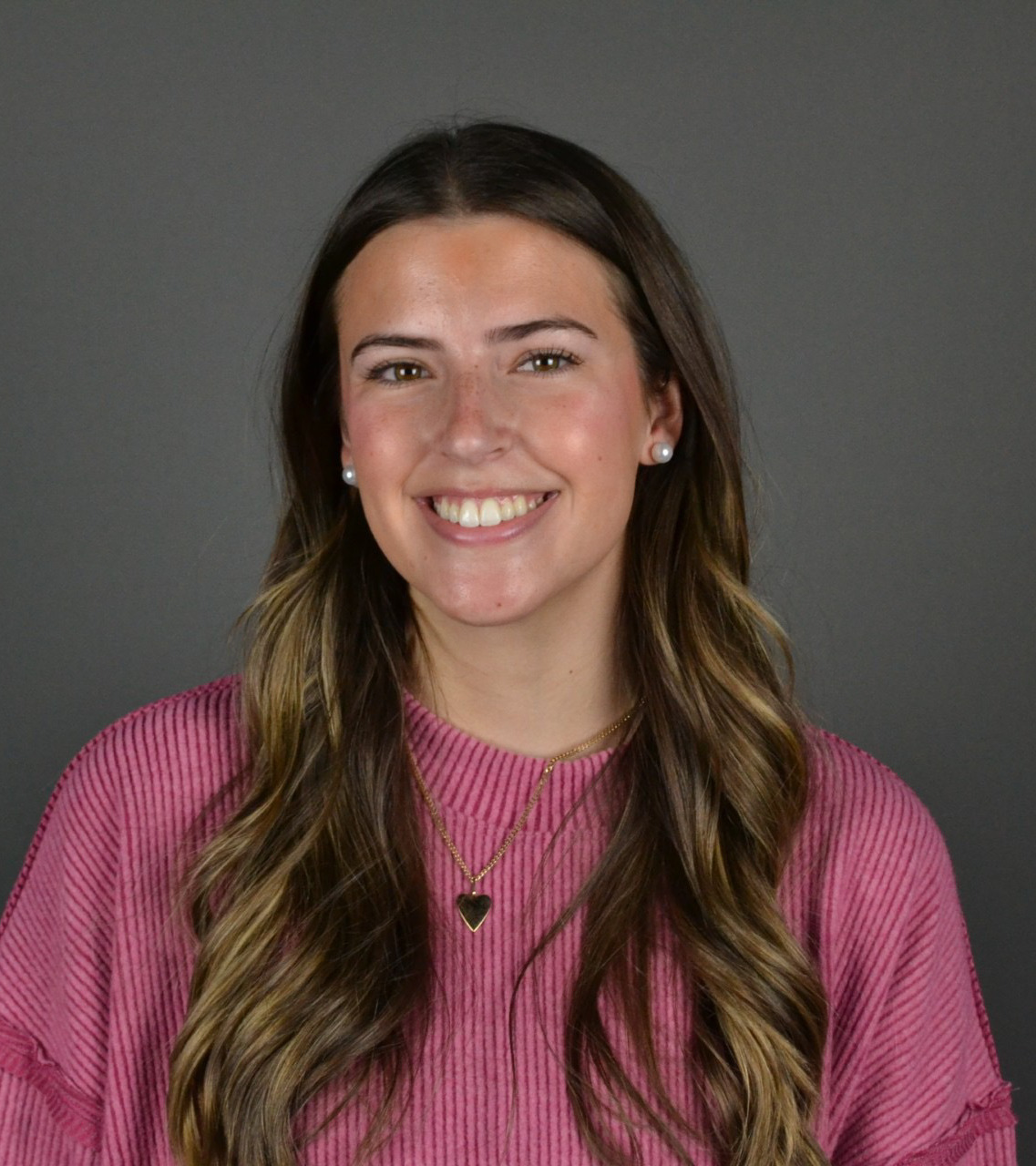
HIRED!

Addy Gmur
Northwestern Mutual | Recruiter
UWL has prepared me for my First Destination by giving me the opportunity to connect with others, and build quality relationships with my professors.
Hear from an alum
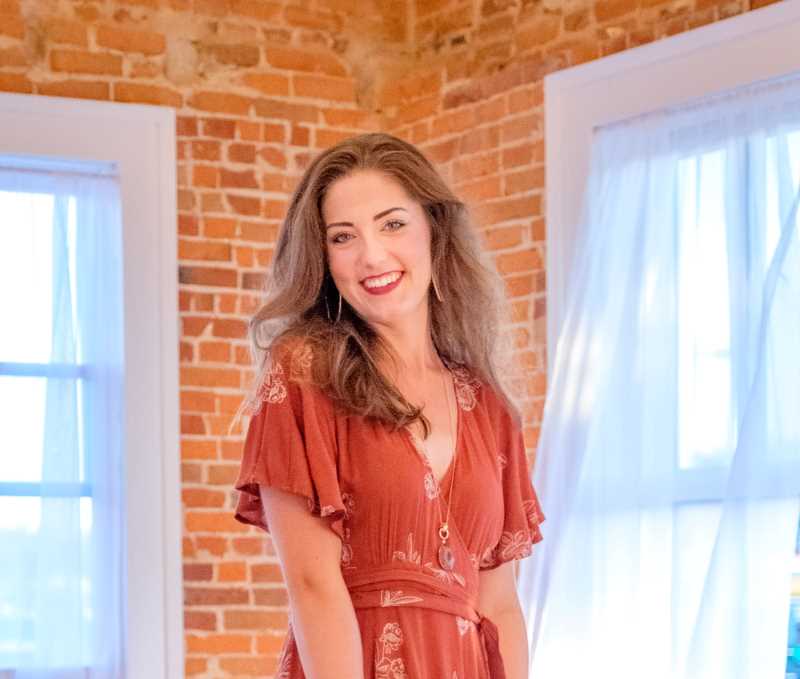
Emmalee Uttech
I loved the gerontology program. It prepared me to enter into graduate school with adequate background knowledge on a population that I am immensely passionate about. The program also allowed me to preform better at my caregiving job and internship at a nursing home because I had extensive knowledge on the population that I was working with.

Hear from an alum
Emily Ziegler
The gerontology classes I have taken have been some of the most interesting out of my time at UWL, and the professors behind the program are great! In Gerontology Club, we have found many creative ways to connect with older adults in our community and the many professionals who aid our aging population throughout Wisconsin.

Hear from an alum
Nicole Popp
I have met some amazing people in nursing homes, workout classes and health professions through Gerontology Club! I feel connected to the La Crosse community and enjoy hearing their stories. The Gerontology emphasis plays an important part in my future career in healthcare.
Hear from an alum
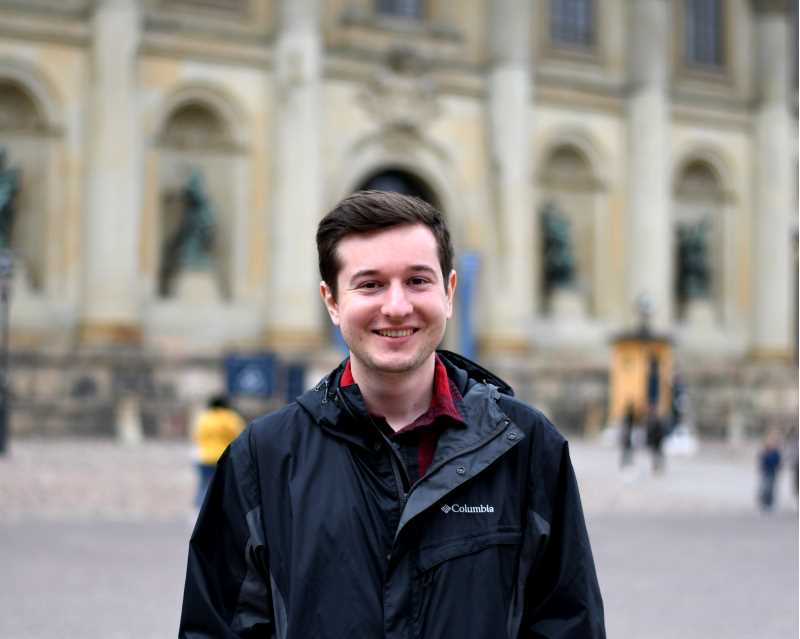
Dylan Jester
The UWL Gerontology emphasis was instrumental to my career by providing a multidisciplinary foundation in gerontological coursework, research, and experiential learning. I was well-prepared to study gerontology in graduate school due to the training and mentorship that I received in the Psychology Department.
Hear from an alum
Skyler Bohn
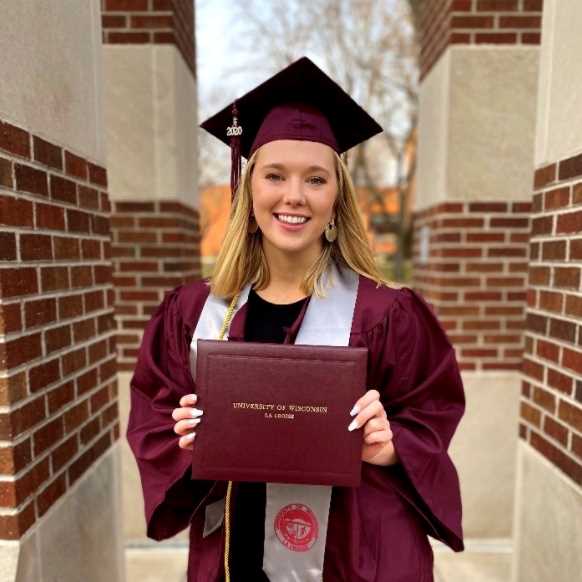
Thank you La Crosse for shaping me into the individual I am today. Between the quaint campus, amazing professors, and wonderful students, I have officially fallen in love with this university, and I am so proud to say that I am an alumnus from the University of Wisconsin-La Crosse!