

Posted 6:36 a.m. Monday, March 2, 2026

Why and how
by Marjorie Bazluki, Senior Instructional Designer
PDF titles and file names do different jobs, so it's a good idea to make them different for easier organizing. Adding a title to a PDF ensures accessibility and proper document identification.
File Name:
This is what you see in folders and search results. Keep it short, clear, and easy to find. Like this: Meeting_Notes_2026-04-27.pdf.
PDF Title (Metadata):
This title is inside the PDF info. PDF readers and other tools use it to show a more detailed title. A good example is: Quarterly Sales Review Q2 2024.
Why the Difference?
Filenames should be short and easy to spot in a folder.
PDF titles can be more descriptive for better searching or other needs.
Sometimes, you need info in the title (like author or security level) that isn't needed in the filename.
Basically:
Keep filenames simple for finding things quickly. Use the PDF title for giving more details when someone opens the file or searches the system.
How to set Document Title and File name
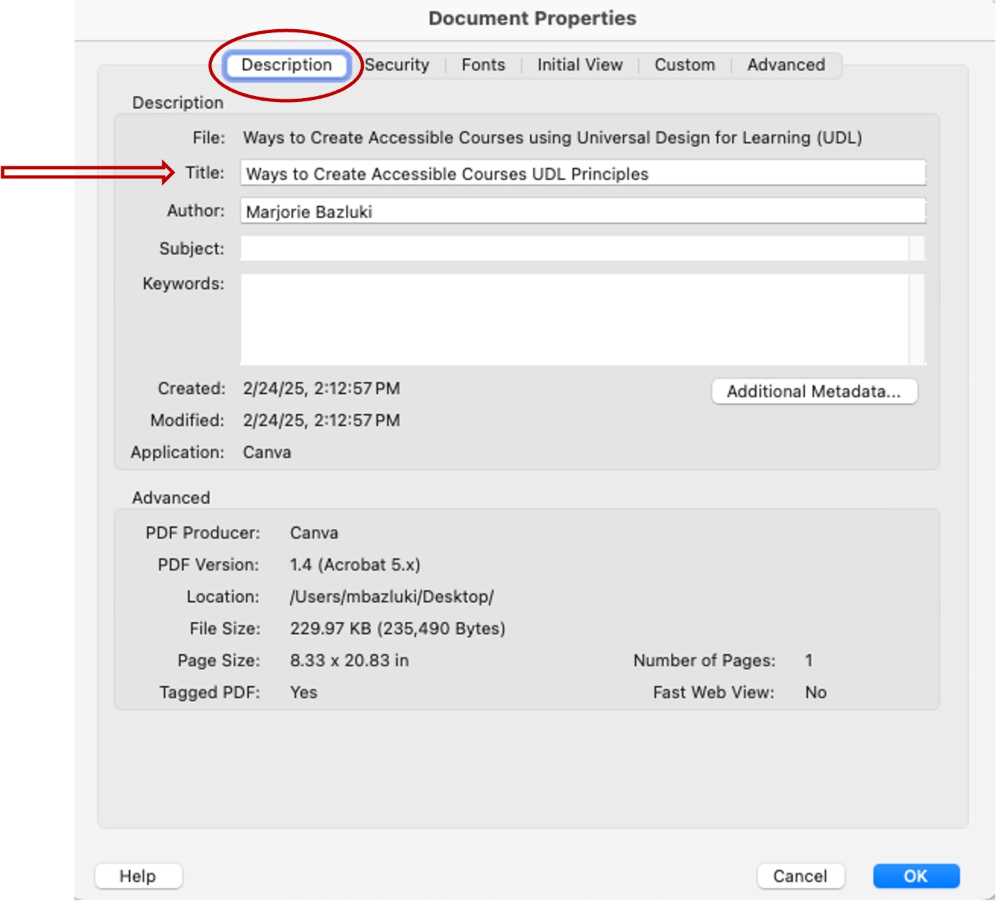
The primary method is to open the document in Adobe Acrobat Pro, select File > Document Properties, navigate to the Description tab, and enter the title in the Title field. To ensure the filename doesn't display instead, change the Initial View settings to show "Document Title" in the title bar.
Here’s the Catch
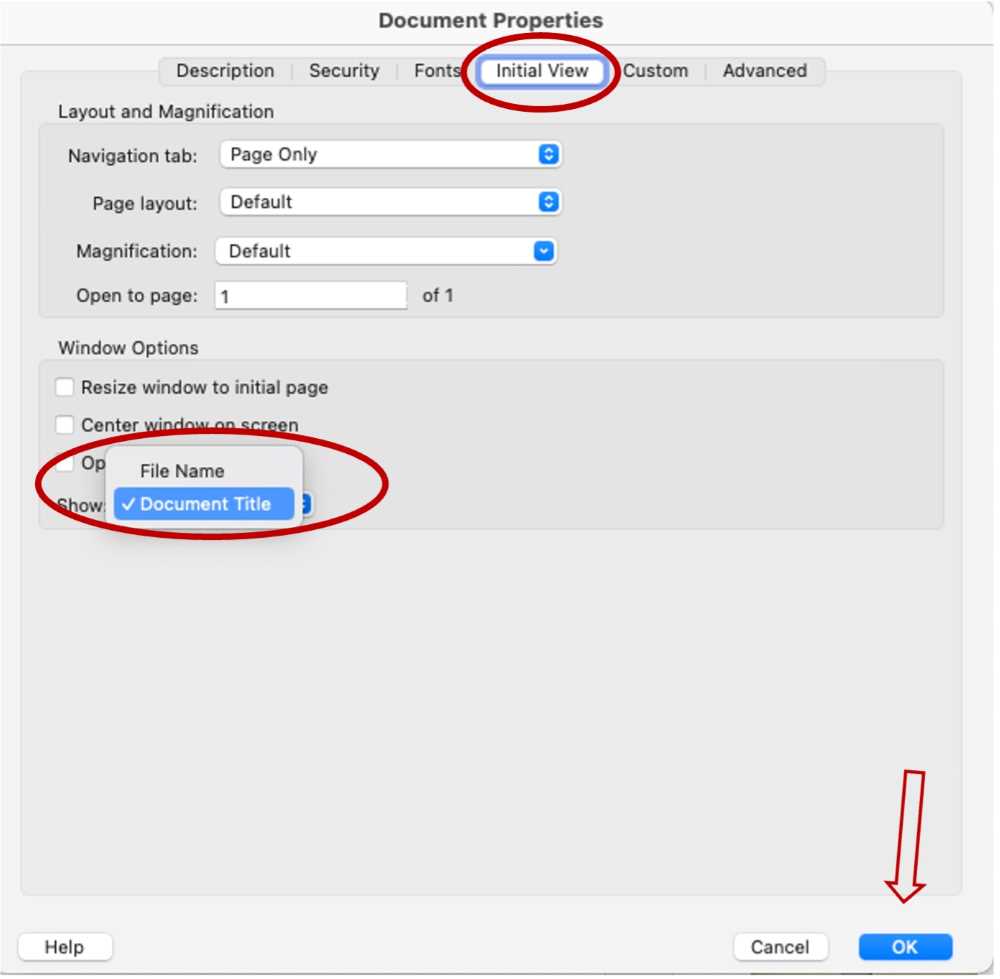
After applying the Title under the Description tab, select the Initial View tab, set the window option to display "Document Title" instead of the "File Name".