



Accessibility media inventory
A page within University Marketing & Communications
The report you received contains all PDF, DOC and DOCX files contained within your site's folder(s).
I received the report, now what?
Make your way through the report, using the dropdown options in Columns C and D.
First, see if the file is in use (C), then make a decision about the file (D).
⚠️ Don't delete any data or rows from this spreadsheet.
The only data you should edit is within Columns C, D and E.
What's each column for?
FileURL (B)
The link that will take you to the selected file for you to begin your review.
Note: After clicking a link and logging in, you may end up at 'Home'. Simply click the link in the sheet once more.
In use? (C)
Use the supplied dropdown box to choose Yes or No based on if the particular file is actively being utilized on your site or not.
Decision (D)
Use the supplied dropdown to make a decision: Keep + Remediate, Delete, Move/Make Private, Keep + Label as Archive, Make web content
Other column definitions
- TreePath (A) - Folder structure the file lives in
- If kept, do you have the original file? (E) - useful if you end up remediating the PDF and need to track down the original or determine if you need to start over
- pkID (F) - for UComm use
- Name (G)- Name of the file
- CreatorName (H) - NetID of person who originally uploaded the file
How do I know if my file is in use?
Step 1
When you click on the FileURL link, it will take you to a deep link within the CMS. Across the top will be the yellow bar that states something like:
- Changes made here will affect at least 1 item
OR - This item is not used anywhere.
If the file is in use, move to step 2. If the file is not in use, move to Step 3.
Step 2
The CMS tells you your file is in use. Is it really? There are two paths to take here:
- You may just know enough about your content to know for sure that the file is in use
OR - You can click the hyperlinked [X item(s)] in the yellow bar, and it will display the block(s) it's used within.
- Click through each block and determine if that block is used and on which page, to help your decision making.
- It's very possible a file will be linked in a block that's no longer being used. Traversing the blocks can be a good way to tell if the file is worth investigating any further or moving to step 3.
Step 3
Figure out why the file is not in use.
- Think about if it's old, irrelevant, and actually unused, or determine if it's unused because it's seasonal.
- Maybe you have a document that's being prepped for a future semester or something that only gets linked to during the summer months.
If determine that the file is unused, it might be beneficial to download a copy for your own records, and then mark it as 'Delete' in column D.
How should I make a decision for a file that's in use?
After determining if your file is in use or not, use the supplied dropdowns to mark your decision about each file:
Keep & remediate
- Reason: You need the file and it needs to be made accessible
- Responsibility: Your office
- Time commitment: high
Delete
- Reason: You no longer need the file (outdated/unused). We imagine a large chunk of the files will fall into this category. Spring cleaning!
- Responsibility: Your office, UComm assistance
- Time commitment: low
Move/make private
- Reason: Sometimes the website became a catch-all for files, but now that we have OneDrive/Teams, files can be safely and securely uploaded, behind a login, removing them from this project. Useful for internal documents and guides.
- Responsibility: Your office
- Time commitment: low, medium
Keep & label as archived
- Reason: Certain lists of files can be considered an archive and they can remain as they were, with a clear heading that they're an archive.
- Responsibility: Your office, UComm assistance
- Time commitment: low, medium
Convert to web content
- Reason: Often times, someone will upload a PDF that is simply a paragraph of text. We can copy that text out and place it within one of our webpages instead, saving someone the need to download the PDF, and also making it much more compliant. Win-Win
- Responsibility: Your office, UComm assistance
- Time commitment: low, medium, high
Not sure?
If you're unsure of what to do, maybe you need our opinion before feeling confident, or you're struggling, let us know. While we won't have time to dive into every file on every site, we can be a sounding board for your office to help you continue forward.
Communications log
Web Accessibility support sessions and progress update - 02/06/2026
This email is being sent to all web editors and office/department leaders.
⚠️ Key takeaways:
- Get help at one of our Web Accessibility Support sessions
- Review your file inventory
- Carve out time to learn how to make accessible files
🖥️Web Accessibility Support sessions
We've piggy-backed on CATL's Digital Accessibility Support sessions and will be offering similar support for the web. No appointment needed, first-come-first-served, stay as long or as little as you want. Bring your own device, if you can!
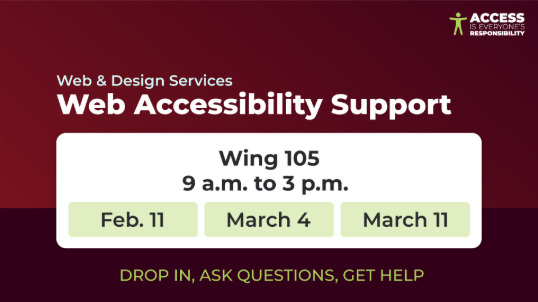
What's great about this is if you have a web question and a course question, you can bounce between our room and CATL's conference room.
🕵️♂️Review your files
- The first step you can take is a small one, and that's reviewing the spreadsheet we sent you.
- This step should be as simple as viewing each file and determining if it should be deleted or remediated.
- Check out our resource that walks you through the steps
- Please complete this step as soon as possible because the closer we get to the April 1 deadline, the more we'll be pushing into the 2nd phase, which is remediating and deleting.
- If you have reviewed your files, make sure we know!
- We have a number of groups that look like they've reviewed but haven't told us yet.
📈Progress update
You guys are all-stars. We have some good stats to share!
- Currently, we have 55% of all media folders marked reviewed.
- In the next couple of weeks, we want that number to be 100%
- We have 28% marked complete 🥳
- We have until April 1 to get this number to 100%
That's all for now, please keep communicating with us as you're making progress and attend the sessions if you're able and need extra help.
Remember, we're comprised of a whole team so please reach out via Share, email Ucomm@uwlax.edu or if you consistently work with a specific UComm staff member, you should feel comfortable sending them a message too.
In other words, jspeer@uwlax.edu is going to be a bottleneck at this point due to the volume of emails coming in regarding this project. 😅
💪 Kudos to everyone who's taking this on with grace and swiftness to make campus a more accessible space for everyone!
File inventory next steps - 01/09/26
⚠️ Key takeaways:
- Files are temporarily restricted from being uploaded
- File inventory reports were sent out to every area
- Complete your review and let us know
- Carve out time to learn how to make accessible files
📦File inventories were sent out
Happy Friday! Did everyone get a file inventory spreadsheet to review?
It may have gone to your supervisor and they can assign you as an editor, so check with them and others on your team, and ultimately come to us if you are feeling like you should have received something but didn't.
🌱What's next?
After you've received your inventory, visit our helpful guide: https://www.uwlax.edu/ucomm/our-services/web/accessibility/
Our main concern right now is that you take time to review your inventory and make a decision about each file.
Reviewing the list doesn't mean you've fixed every problem, it just means you've made decisions and can begin the next step of handling the files.
- If you've completed your review, let us know!
- If you have files marked Delete, have you deleted them or would you like us to?
- If you'd like to delete your unused files now, go for it!
- If you have files that are in-use, you want to delete them, and you need guidance in doing so, we can help you.
- If you'd like us to delete the files for you, we'll purge them and note it on your spreadsheet.
✏️Learn how to make your files accessible
Seriously, make time to learn how to make accessible files.
This resource is super useful and guides you through the basics of how and why.
Those who have taken the course have said it's effective at giving you a greater perspective of why this all matters and how you can start making your files accessible for everyone.
TESTIMONIAL
"The section that teaches us how to make PDFs, Word docs, Excel docs, etc. was a very useful starting point for accessibility. I look forward to learning more on my own!"
-Kaylie Connaughty, totally unbiased reviewer
File uploads are now restricted - 01/05/26
⚠️ Key takeaways:
- Files can no longer be uploaded (timeline below)
- File inventory reports are going out to every office/department
- Carve out time to learn how to make accessible files
- 🥳Shout-out to the following for being DONE:
- CBA > Accountancy
- CBA > Marketing
- GEL > Online, Summer and Winter Session
- CASSH > Art
- A&F > Parking
📦Get ready, file reports are coming your way!
Starting today, we're sending out file inventory reports to each department/office. If you asked for one previously, you won't get another and you can keep working in the version you have.
After this week, if you're feeling like you should have received something and didn't, let us know.
Once you receive your report, this resource will be useful to you:
https://www.uwlax.edu/ucomm/our-services/web/accessibility/
Thank you, early birds!
Of the 198 primary content folders that need to be reviewed, we've sent out 58 reports for those who requested early access. We appreciate you! You've helped us test our process and make sure we're moving in the right direction. Thanks for bearing with us.
⛔File upload restriction is in effect
The ability to upload document files like PDF and Word docs is now restricted. Images are still allowed.
📍What does the timeline look like?
- ☑️File upload restriction: Enable - January 1, 2026
- Media inventory: Email spreadsheets to units - January 5, 2026
- Remediation workshop - February (mid), 2026
- Remediation workshop - March (early), 2026
- Remediation workshop - March (mid), 2026
- Compliance - April 1, 2026
- File upload workflow: Enable - April 1, 2026
- File purge rules: Activate - April 1, 2026
🌱What's next?
Our team will be focused on getting you these reports. You will do your part in reviewing your report and following up with us as you finish reviewing or have any questions about the report.
We'll be busy behind the scenes prepping the future state of how PDFs will go through a review step before getting uploaded. We'll also be prepping the workshop sessions and letting your questions drive a lot of that information.
File upload restriction plan (2nd reminder) - 12/15/2025
⚠️ Key takeaways:
- This is a recap of the email sent on Oct. 15 and Nov. 20
- FAQs are answered/revised below
- Carve out time to learn how to make accessible files
- 🥳Shout-out to the following for getting an early start on their file remediation: Disability Resource Center, Admissions, Campus Child Center, MVAC, Marketing Department, Occupational Therapy (Grad), Physician Assistant Studies (Grad), Records, Art Department, Geography & Environmental Science Department, and Rec Sports!
- - -
⛔File upload restriction plan
Starting in January, the ability to upload document files like PDF and Word docs will be disabled. Images will still be allowed.
We know there are going to be emergencies and file uploads that are required to go into the site, and please know we'll absolutely work with you all to make that happen.
📍What does the timeline look like?
- File upload restriction: Enable - January 1, 2026
- Media inventory: Email spreadsheets to units - January 2, 2026
- Remediation workshop - February (mid), 2026
- Remediation workshop - March (early), 2026
- Remediation workshop - March (mid), 2026
- Compliance - April 1, 2026
- File upload workflow: Enable - April 1, 2026
- File purge rules: Activate - April 1, 2026
🗣️ Your questions, answered
Thank you to everyone who wrote in with questions and for being patient as we work to provide answers and/or learn more.
- [NEW] Where do we even begin to start?
You'll start by learning how to make an accessible file. The best way to go about that is to take the course offered on Canvas. This will take you through the ins-and-outs of making a file accessible and why it matters.
After that, visit our Web Accessibility page which, right now, is fully dedicated to the file audit/remediation project. We'll continue to include more information there as we learn more. - What constitutes an "archive"?- The content must have been created prior to the compliance date
- The content is kept only for reference, research, or recordkeeping
- The content is kept in a special area for archived content
- The content has not been changed since it was archived
If your content passes all 4 of those points, then you can safely store it as archived content. We'll want to work with you to nest it in a folder called archive and make sure it has the necessary labels/disclaimers as well. - Summarized, the official DOJ documentation states:
- What's better: PDF or Word DOC?
- This has so many possible answers, but here was a short guide I put together specifically as it relates to www.uwlax.edu
- BEST: Make it web content (no one has to download anything, you don't have to manage file uploads)
- BETTER: PDF properly tagged (correct reading order)
- OK: Word Doc (only less better than a correct PDF because it's more universal, not everyone has Word)
- Is the software____ accessible?
Many of you have your own systems that you use for registrations, services, etc. and those are not part of the scope of UComm, but they absolutely are a part of the Title II regulations.
You will need to work with your vendors to ensure Title II/Section 508 compliance and also connect with procurement when renewing subscriptions as software will need to be accessible to be purchased.
Please note that this will add time to procuring software, so be sure to plan ahead. - Can we start going through our files and remediating now?
Yes! Thanks to those who have asked this. We're at a place now where we can run a report and get your content list and you can start the journey of figuring out what's in use, and what decision needs to be made for each file.
Please fill out a web request and title it "Accessibility File Inventory for [your department here]". Then, we'll provide you with a spreadsheet, and you can get to work!
🗺️The road to accessibility on www.uwlax.edu
Offices like Disability Resource Center, Center for Advancing Teaching & Learning (CATL), Information Technology Services (ITS), and Procurement have already been doing large amounts of work in preparation for this deadline.
This is a massive team effort and we really do mean it when we say:
"Access is Everyone's Responsibility".
File upload restriction plan (1st reminder) - 11/20/2025
⚠️ Key takeaways:
- This is a recap of the email sent on Oct. 15
- Some FAQs are answered below
- - -
📍What does the timeline look like?
- File upload restriction: Enable - January 1, 2026 (outlined below)
- Media inventory: Email spreadsheets to units - January 2, 2026
- Remediation workshop - February (mid), 2026
- Remediation workshop - March (early), 2026
- Remediation workshop - March (mid), 2026
- Compliance - April 1, 2026
- File upload workflow: Enable - April 1, 2026
- File purge rules: Activate - April 1, 2026
⛔File upload restriction plan
Starting in January, the ability to upload document files like PDF and Word docs will be disabled. Images will still be allowed.
The reason for this is that there are thousands of files on the site. Our latest scan shows over 11,000 PDFs and over 1,000 word docs. We'll be hard at work identifying files that are uploaded to each unit's folder, and then provide a decision tree spreadsheet with the following options:
- Keep & remediate
- You need the file and you'll be responsible for making it accessible
- Delete
- You no longer need the file (outdated/unused). We imagine a large chunk of the files will fall into this category. Spring cleaning!
- Move/make private
- Sometimes the website became a catch-all for files, but now that we have OneDrive/Teams, files can be safely and securely uploaded, behind a login, removing them from this project. Useful for internal documents and guides.
- Keep & label as archived
- Certain lists of files can be considered an archive and they can remain as they were, with a clear heading that they're an archive.
- Convert to web content
- Often times, someone will upload a PDF that is simply a paragraph of text. We can copy that text out and place it within one of our webpages instead, saving someone the need to download the PDF, and also making it much more compliant. Win-Win
📍The plan is to activate the restriction on January 1, giving us 4 months to work with you all to remediate and become compliant.
We know there are going to be emergencies and file uploads that are required to go into the site, and please know we'll absolutely work with you all to make that happen.
At this time, please think about files you know you will need to upload during Spring semester and think about the options outlined above and how you will handle that file when it's time to decide.
🗣️ Your questions, answered
Thank you to everyone who wrote in with questions and for being patient as we work to provide answers and/or learn more.
- What constitutes an "archive"?- The content must have been created prior to the compliance date
- The content is kept only for reference, research, or recordkeeping
- The content is kept in a special area for archived content
- The content has not been changed since it was archived
If your content passes all 4 of those points, then you can safely store it as archived content. We'll want to work with you to nest it in a folder called archive and make sure it has the necessary labels/disclaimers as well. - Summarized, the official DOJ documentation states:
- What's better: PDF or Word DOC?
- This has so many possible answers, but here was a short guide I put together specifically as it relates to www.uwlax.edu
- BEST: Make it web content (no one has to download anything, you don't have to manage file uploads)
- BETTER: PDF properly tagged (correct reading order)
- OK: Word Doc (only less better than a correct PDF because it's more universal, not everyone has Word)
- Is the software____ accessible?
Many of you have your own systems that you use for registrations, services, etc. and those are not part of the scope of UComm, but they absolutely are a part of the Title II regulations.
You will need to work with your vendors to ensure Title II/Section 508 compliance and also connect with procurement when renewing subscriptions as software will need to be accessible to be purchased. - Can we start going through our files and remediating now?
Yes! Thanks to those who have asked this. We're at a place now where we can run a report and get your content list and you can start the journey of figuring out what's in use, and what decision needs to be made for each file.
Please fill out a web request and title it "Accessibility File Inventory for [your department here]". Then, we'll provide you with a spreadsheet, and you can get to work!
🗺️The road to accessibility on www.uwlax.edu
Offices like Disability Resource Center, Center for Advancing Teaching & Learning (CATL), Information Technology Services (ITS), and Procurement have already been doing large amounts of work in preparation for this deadline.
This is a massive team effort and we really do mean it when we say:
"Access is Everyone's Responsibility".
Web accessibility requirements + timeline - 10/15/2025
🗺️The road to accessibility on www.uwlax.edu
As many of you are aware, the deadline for digital accessibility compliance is quickly approaching on April 1, 2016.
Offices like Disability Resource Center, Center for Advancing Teaching & Learning (CATL), Information Technology Services (ITS) and Procurement have already been doing large amounts of work in preparation for this deadline.
This is a massive team effort and we really do mean it when we say, "Access is Everyone's Responsibility".
🚨Long email alert, lots to cover.🚨
--- --- --- ---
⚠️ Key takeaways:
- File uploads will be temporarily restricted
- File uploads will need to be scanned and remediated by owner/office
- File uploads will go through a workflow after the compliance date
--- --- --- ---
🌐Digital accessibility on the web
Everyone's work is a little bit different in this area. For the sake of this email, I'm only going to be referencing www.uwlax.edu. Note the "www" in the web address. Anything other than "www." or "share." is not something UComm maintains, but your office may have web-based software that you'll be responsible for as well.
📍What does the timeline look like?
- File upload restriction: Enable - January 1, 2026
- Media inventory: Email spreadsheets to units - January 2, 2026
- Remediation workshop - February (mid), 2026
- Remediation workshop - March (early), 2026
- Remediation workshop - March (mid), 2026
- Compliance - April 1, 2026
- File upload workflow: Enable - April 1, 2026
- File purge rules: Activate - April 1, 2026
⛔File upload restriction plan
Starting in January, the ability to upload document files like PDF and Word docs will be disabled. Images will still be allowed.
The reason for this is that there are thousands of files on the site. Our latest scan shows over 11,000 PDFs and over 1,000 word docs. We'll be hard at work identifying files that are uploaded to each unit's folder, and then provide a decision tree spreadsheet with the following options:
-
- Keep & remediate
- You need the file and you'll be responsible for making it accessible
-
- Delete
- You no longer need the file (outdated/unused). We imagine a large chunk of the files will fall into this category. Spring cleaning!
-
- Move/make private
- Sometimes the website became a catch-all for files, but now that we have OneDrive/Teams, files can be safely and securely uploaded, behind a login, removing them from this project. Useful for internal documents and guides.
- Keep & label as archived
-
- Certain lists of files can be considered an archive and they can remain as they were, with a clear heading that they're an archive.
- Convert to web content
-
- Often times, someone will upload a PDF that is simply a paragraph of text. We can copy that text out and place it within one of our webpages instead, saving someone the need to download the PDF, and also making it much more compliant. Win-Win
There's no way we can build accurate file lists for each unit when there are new files uploaded every week, so we've decided it's necessary to disable document file uploads temporarily. We need to get ahead of what's there, before we can push forward.
📍The plan is to activate the restriction on January 1, giving us 4 months to work with you all to remediate and become compliant.
We know there are going to be emergencies and file uploads that are required to go into the site, and please know we'll absolutely work with you all to make that happen.
At this time, please think about files you know you will need to upload during Spring semester and think about the options outlined above and how you will handle that file when it's time to decide.
🧭Looking ahead
This email is long enough at this point but know that we have much to do behind the scenes and your cooperation will mean a lot. We've made thousands of adjustments already and we'll continue to do so until we're compliant!
Keep an eye out for more emails from me. I'll be sending reminders, status updates and next steps. I'll talk through how remediating a file works and what our workshop sessions might look like (your input will be highly valued here!) and how the file upload workflow will operate.
If our responses seem a little slower than usual, now that this is a huge focus for us and demands quite a bit of our attention.
As always, thank you for your patience and cooperation!
Back-to-school special - 08/26/2025
🔔 It's that time of year: update your "Our people" pages
Please update your area's Our people page with any new employees by the end of next week, as students will be looking for contact information.
Instructions can be found on our Web Editor training page.
All employees can get new headshots free through UComm if they wish to have a more current photo, or a photo at all. Students find it helpful to have the photos, just as it is for faculty to have the photos of students.
If you're within an academic department (aka, Notes from Betsy):
- ADAs are expected to update and maintain the NetIDs within the Our people block
- It is highly recommended to link to the Emeriti Directory
- The Provost's Office has a listing of chairs and ADAs that is public-facing
- Let Kelly Arnost know if updates are needed
👤 Noticing something incorrect in the directory or on a profile page?
You're not alone! UW Shared Services is actively working on the issue. Things like locations, office/department names, etc., may be inaccurate.
We're getting a number of messages about this still, but please hold tight on submitting requests related to directory information until the ATP group has had time to assess and resolve the issue.
♿ Digital accessibility and you
We're excited to see the number of emails coming in asking questions about digital accessibility and what it means for your website. Please know that we're working behind the scenes to build reports and make this as easy as possible for everyone.
Before you start thinking you'll need to scan your pages and make adjustments, know that we're already doing that for you.
Your main focus, when we're done assessing, will be your files, like PDFs, Word Docs, etc.
We'll be working office by office to decide if files should be kept and remediated, deleted, or moved to a shared folder like OneDrive/Teams.
As a reminder, you can view more about this project and self-enroll in courses to learn more at the UWL Accessibility website.
Access is everyone's responsibility!
👋 As always, thank you for contributing to the UWL website and making it a great resource for so many people!
Directory info and web editor groups - 07/31/2025
👤 Noticing something incorrect in the directory or on a profile page?
You're not alone! UWL HR and UW Shared Services are actively working on the issue. Things like locations, office/department names, etc. may be inaccurate.
We're getting a number of messages about this but please hold tight on submitting requests related to directory information until the ATP group has had time to assess and resolve the issue.
🧰 Web editor group maintenance
With the compliance date for the Title II accessibility regulation a year away, we're working to make sure your content is up-to-date and accessible.
One of the first steps we're taking is to identify active and necessary web editors for your area so we can better communicate and set accessibility expectations for web content going forward.
✉ You can expect an email from jspeer@uwlax.edu within the next day or two with your web editor list and suggested changes. If you don't receive an email, that means your web editor list is already just one or two people and looks good.
You can learn more about the updated regulations and timeline at the UWL Accessibility landing page. You can also pick up one of these door hangers from UComm, CATL, ITS or Disability Resource Center to help spread awareness and resources.
We'll be sending more targeted information for your office as we work through our list based on the priority matrix found on the Accessibility site.
👋 As always, thank you for contributing to the UWL website and making it a great resource for so many people!
